SAM2 Segmentation in ComfyUI: Fast Video Masking for VFX & AI Workflows
A practical, no-fluff guide to generating clean alpha masks from video using SAM2 Segmentation inside ComfyUI. Covers tools, workflow, model settings, limitations, and tips for getting reliable masks for VFX or AI pipelines.
COMFYUIAIVFX
Prince Chudasama
11/18/20253 min read
Introduction
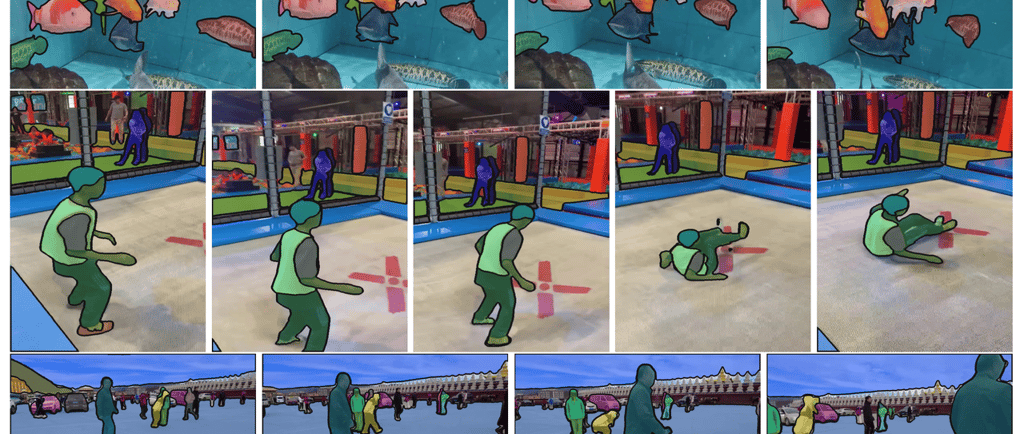
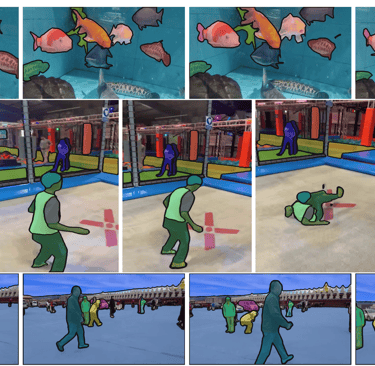
SAM2 Segmentation is one of the quickest ways to generate alpha masks from video inside ComfyUI. If you’re used to manual roto, this isn’t a replacement, but it is a solid tool for fast garbage masks, reference mattes, and quick isolation work.
After testing the workflow, I’ve broken it down into a simple, repeatable process. If you’re working with VFX, cleanup, compositing, or any AI-based pipeline, this guide will help you get clean masks fast and avoid common issues.
TABLE OF CONTENTS
Tools & Resources
Step-by-Step Workflow
Tips & Tricks
Troubleshooting
Conclusion
Downloads & Resources
Tools & Resources
Models
SAM 2: Segment Anything in Images and Videos
Hardware Used
ComfyUI Cloud GPU: A100s with 40GB+ VRAM
GPU: Nvidia Geforce GTX 1650 ti
CPU: Intel Core i7
RAM: 32GB
OS: Windows
Software
ComfyUI Cloud — https://www.comfy.org
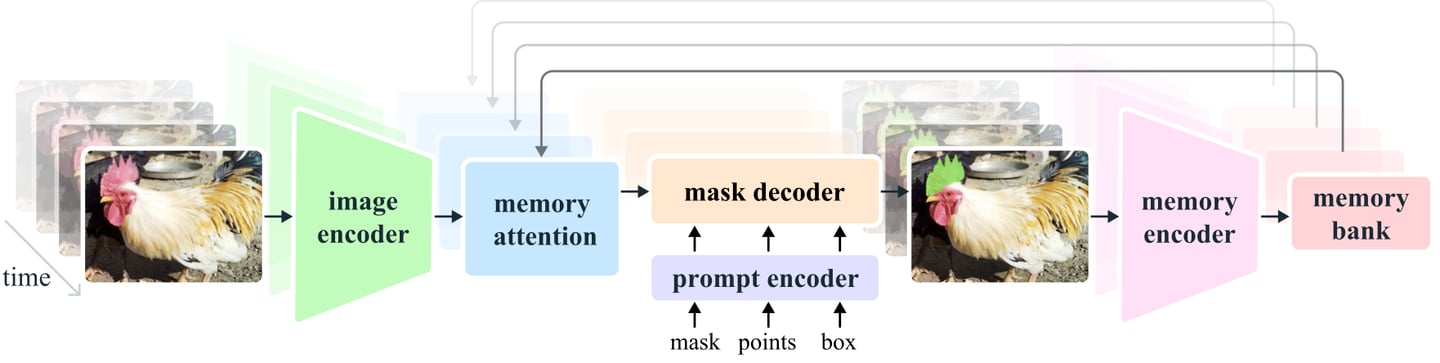
sam2_hiera_tiny
sam2_hiera_small
sam2_hiera_base_plus
sam2_hiera_large
Step-By-Step Workflow
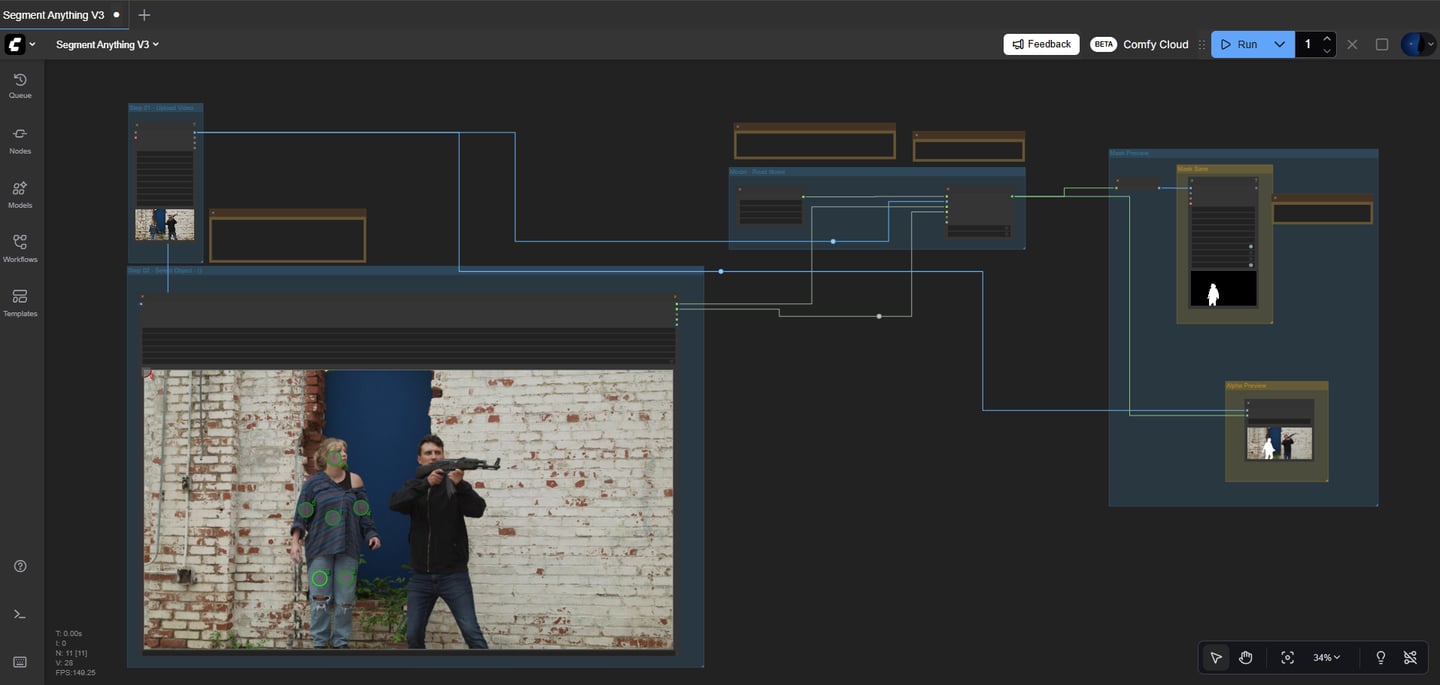
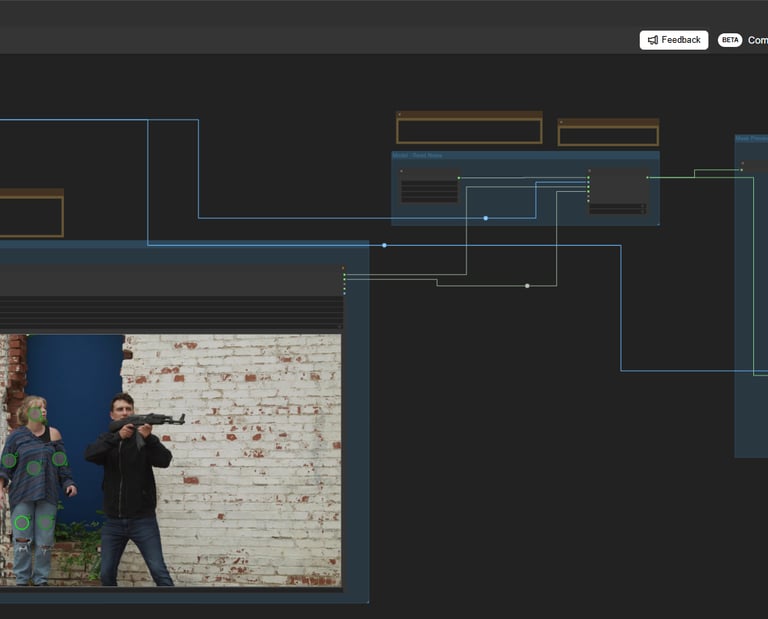
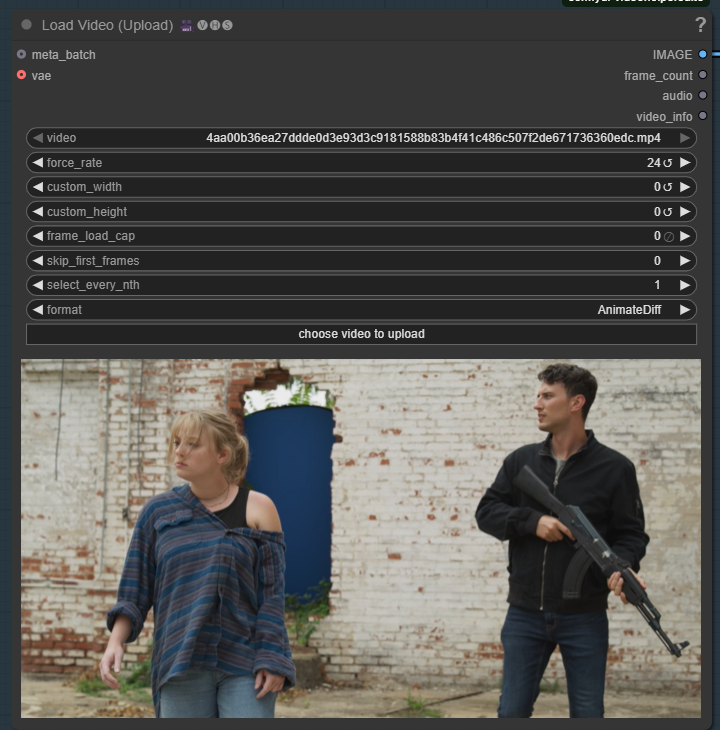
1. Upload the Video
Use the video loader node and make sure you configure:
force_rate → set this to match your video’s frame rate
Frame_load_cap → choose your starting frame
This ensures your output matches the input timing, and you can start masking at the correct frame.
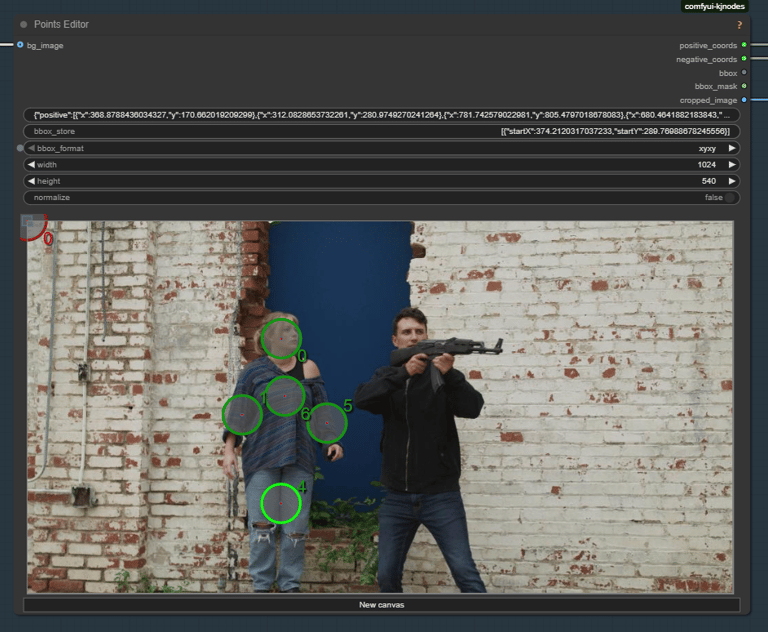
2. Select Your Object
You select the mask on the first frame only, using:
Shift + Left Click → positive point (green)
Shift + Right Click → negative point (red)
Ctrl + Click → draw a box around your object
Right Click on a point → delete point
If you're adding a reference image:
Copy/paste into the node,
Or drag it in,
Or connect through bg_image on the queue (first frame of batch).
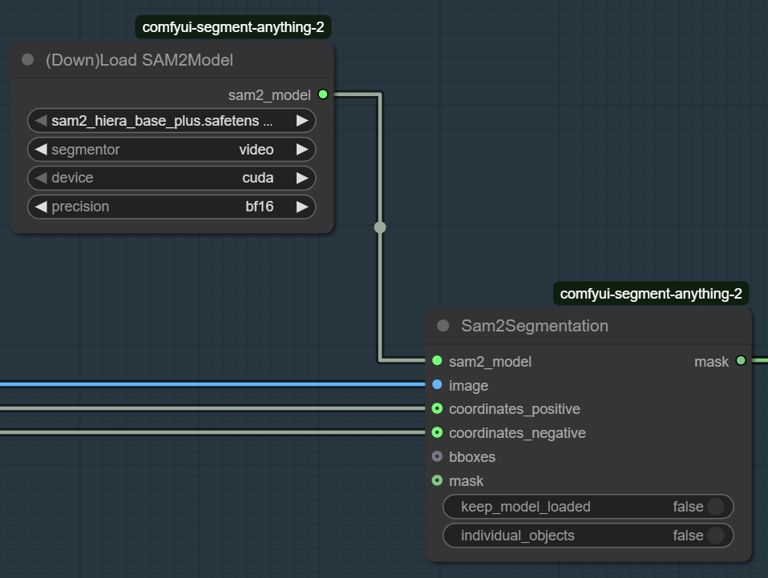
3. Set Up Your Model
Choose your precision based on system performance:
FP16
Lowest memory, Fastest, Soft detail
Good for quick tests or low-end GPUs
BF16
Balanced memory + detail, Better quality
Works on most GPUs
Recommended for general use
FP32
Highest detail, Longest render times
High memory usage
Only for strong GPUs
If you’re masking multiple objects, enable individual model for each selected object.
4. Run the Workflow
Make sure the output frame rate matches the input video.
This keeps motion consistent and avoids stuttering in the final mask render.
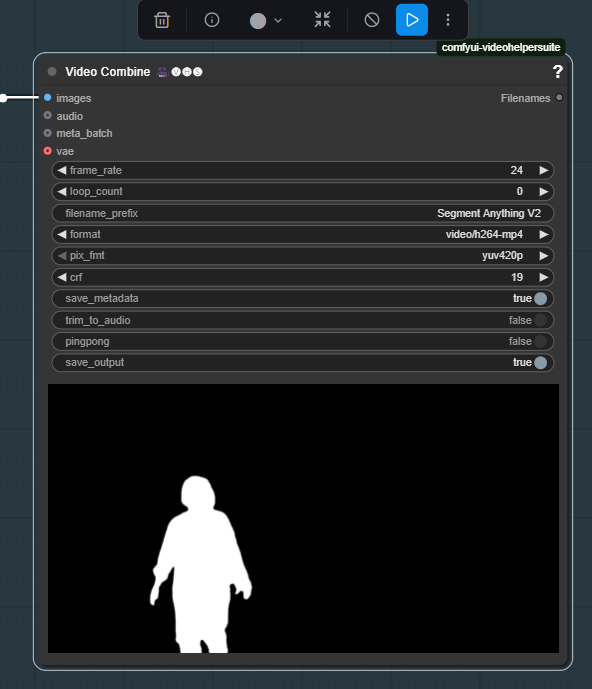
Outputs



Footage
Alpha Generated (ComfyUI)
Final Output
Limitations
You can only select the object on the first frame.
It cannot mask objects that appear later in the clip.
The mask is hard-edged, not ideal for fine roto.
Best suited for garbage masks, rough isolation, or AI preprocessing.
Troubleshooting
Mask looks wrong.
Add more positive points.
Add negative points where the mask spills over.
Try BF16 or FP32 for better detail.
Mask flickers between frames.
Too few points selected
Precision too low
Low-contrast footage → lighten or contrast before segmentation
Output stutters or plays too fast/slow.
Your output frame rate doesn't match input frame rate.
Fix it and re-render.
Model not responding / weird results
Restart ComfyUI
Reset model precision
Refresh/repair SAM2 nodes via Manager
Conclusion
SAM2 Segmentation in ComfyUI is a fast solution for generating alpha masks from video—especially when you need quick garbage mattes or reference masks without spending hours in manual roto. It’s not perfect, but when paired with traditional VFX tools, it becomes a solid accelerator in your workflow.
If you’re building AI pipelines, cleaning plates, or experimenting with automated segmentation, this setup gives you a strong foundation to build on.
Downloads & Resources
ComfyUI — https://www.comfy.org
SAM2 Model Pack — https://github.com/facebookresearch/sam2
Footage — https://www.actionvfx.com/practice-footage/post-apocalyptic-drone-attack
Workflow — Segment Anything Workflow
ControlNet & Other Resources — https://huggingface.co